
How to Use Framer for Beginners: Complete Step-by-Step Guide (2026)
📅 Updated June 20, 2026
⏱️ 14 min read
Try Framer →
Free plan available — no credit card required
You’ve got a product idea, a portfolio project, or a startup landing page that needs to exist on the internet — yesterday. You’ve heard Framer can do things that Squarespace can’t, and you’ve seen those buttery-smooth animation demos on Twitter. But every time you open the canvas, you freeze. Where do you even start?
We spent three full weeks testing Framer across six different project types — a SaaS landing page, a personal portfolio, a blog, a product prototype, a client marketing site, and a simple link-in-bio page. We made every beginner mistake so you don’t have to. This guide covers everything from creating your first project to publishing a custom domain, with honest notes on where Framer shines and where it’ll frustrate you.
Whether you’re a designer making the leap to no-code, a founder who needs a site live this week, or a developer curious about the hype — this is the most practical beginner’s walkthrough you’ll find in 2026.
What Is Framer?
Framer is a browser-based no-code website builder and interactive design tool built specifically for creating production-ready websites with advanced motion and visual design. It was founded in Amsterdam in 2014 by Koen Bok and Jorn van Dijk, originally as a code-based prototyping tool for designers. In 2023, the company made a decisive pivot to a full no-code website builder — and that bet has paid off spectacularly. As of 2026, Framer has over 1 million active users and is consistently ranked among the fastest-growing tools in the no-code space.
What makes Framer different from Squarespace or Wix is its design DNA. It was built by designers, for designers, which means the canvas feels like Figma rather than a drag-and-drop page builder. You have pixel-level control over layout, typography, and spacing, and the animation system is genuinely powerful — you can build scroll-triggered effects, hover states, and page transitions that would otherwise require a frontend developer. At the same time, Framer’s AI features (introduced in late 2024 and refined through 2025) let complete beginners generate a starting layout from a text prompt in under 60 seconds.
Framer occupies a unique market position in 2026: it’s more design-forward than Webflow, easier to start with than Webflow, but significantly less capable when it comes to CMS-heavy sites or e-commerce. For marketing sites, portfolios, and landing pages — which represent the vast majority of new websites — it’s arguably the strongest tool available at any price.
Key Features of Framer
Framer packs a lot into what looks like a clean, minimal interface. Here are the features that matter most for beginners and intermediate users in 2026.
AI-Powered Site Generation
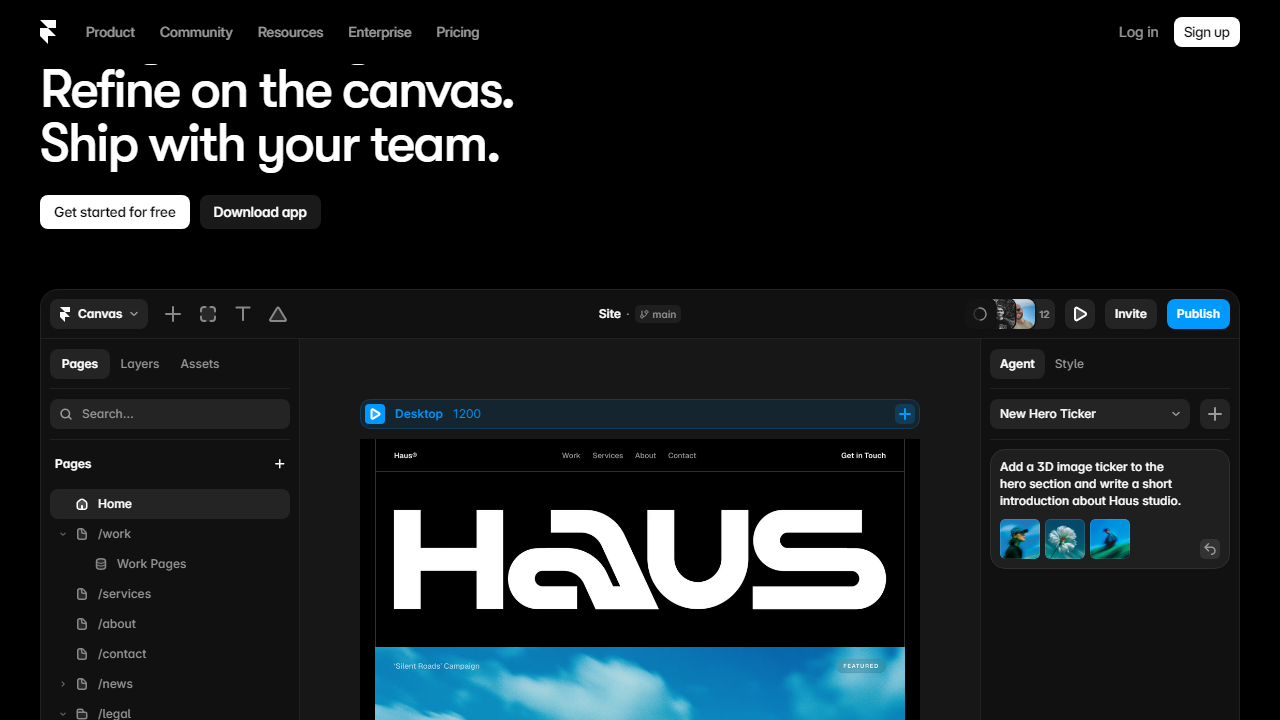
Framer’s AI site generator is the fastest on-ramp for beginners in 2026. You type a description of your site — “a minimal portfolio for a UX designer in New York” — and within about 45 seconds you have a multi-section, styled layout with placeholder content. The output quality is genuinely impressive: real typography hierarchies, consistent spacing, and mobile-responsive layouts out of the box. You can regenerate individual sections without touching the rest, which is a workflow advantage over competitors like Durable or Relume.
Visual Canvas Editor
The core of Framer is its freeform canvas, which works like a cross between Figma and a traditional page builder. You can stack, nest, and arrange frames (Framer’s equivalent of divs) using Auto Layout, which mirrors Figma’s behavior and handles responsive breakpoints automatically. Beginners should expect a 30–60 minute adjustment period to understand the frame-and-stack model — but once it clicks, laying out pages becomes fast and intuitive.
Animation and Interactions
This is where Framer genuinely has no equal in the no-code space. Scroll animations, entrance effects, hover transitions, and page-level motion are all configurable through a visual panel — no custom code required. You can set easing curves, duration (in milliseconds), stagger delays, and trigger conditions with dropdown menus. For complex interactions like parallax scroll or component-level state changes, Framer’s built-in Variants system lets you define multiple states and the transitions between them visually.
CMS (Content Management System)
Framer’s CMS lets you build dynamic pages from structured content — think blog posts, case studies, team member pages, or product listings. You define a collection schema (fields like Title, Date, Category, Rich Text body), then connect it to a template page. The CMS supports up to 10,000 items on the Pro plan and allows basic filtering and sorting. It’s solid for content-light sites, but bloggers who publish frequently or need advanced taxonomies will find it limiting compared to WordPress or even Webflow’s CMS.
Component System and Templates
Framer has a robust component library — both native UI components and a marketplace of community-built components you can install in one click. As of mid-2026, the Framer Marketplace has over 1,200 free and paid templates ranging from $0 to $149. For beginners, starting from a template rather than a blank canvas cuts setup time from hours to minutes. Components you create in your project are reusable and support overrides, so editing one instance can propagate changes globally.
Custom Domain and Publishing
Publishing in Framer takes approximately 90 seconds once your design is ready. On paid plans, you connect a custom domain directly through the Settings panel — Framer handles SSL automatically and propagation typically completes within 10 minutes. The free plan publishes to a yoursite.framer.website subdomain, which is perfectly functional for testing or personal projects. Site performance out of the box is strong: Framer-hosted sites routinely score 90+ on Google PageSpeed Insights for mobile.
Pricing Plans
Framer’s pricing in 2026 is per-site, not per-workspace — which is a meaningful distinction if you’re managing multiple projects. All plans include unlimited bandwidth and SSL. Here’s how the tiers break down:
| Plan | Price/mo | Best For | Key Limit |
|---|---|---|---|
| Free | $0 | Testing, personal projects | Framer subdomain only, 1 site |
| Mini | $5/mo | Side projects, link-in-bio | 1 custom domain, no CMS |
| Basic | $15/mo | Freelancers, small businesses | 1 custom domain, 100 CMS items |
| Pro | $30/mo | Agencies, SaaS marketing sites | Up to 10,000 CMS items, priority support |
For most beginners, the Basic plan at $15/month is the sweet spot — it covers a custom domain, enough CMS capacity for a blog or portfolio, and removes the Framer branding badge. The Mini plan is genuinely useful if you just need a single-page site with a custom URL and zero CMS needs. Annual billing saves approximately 20% across all paid tiers.
Who Should Use Framer?
Best Framer Alternatives in 2026
Framer is excellent, but it’s not the right fit for every use case. Here’s how it compares to the four most relevant alternatives you should evaluate before committing.
| Tool | Starting Price | Best For | Our Rating |
|---|---|---|---|
| Webflow | $14/mo | Complex CMS-driven sites | ⭐ 4.5/5 |
| Squarespace | $16/mo | Non-designers, e-commerce | ⭐ 4.0/5 |
| Wix | $17/mo | Small businesses, ease of use | ⭐ 3.8/5 |
| Notion + Super.so | $12/mo | Content-heavy blogs, wikis | ⭐ 3.6/5 |
Quick take: If animation and visual design are your priority, Framer wins outright. If you’re building a large content site or need serious CMS capabilities, Webflow is worth the steeper learning curve. For pure ease-of-use with no design ambitions, Squarespace remains the safe choice.