
How to Use Notion for Beginners: The Complete Step-by-Step Guide (2026)
📅 Updated August 8, 2026
⏱️ 14 min read
Try Notion →
Free plan available — no credit card required
You’ve probably opened Notion for the first time, stared at a blank white page, and immediately felt a creeping panic — where do I even start? You’re not alone. Notion has over 100 million users worldwide in 2026, and nearly every one of them has experienced that same moment of productive paralysis. The tool is so open-ended, so infinitely customizable, that starting from scratch feels like being handed a pile of lumber and being told to build a house.
Here’s the truth nobody tells you upfront: Notion has a real learning curve, but it’s not steep because the tool is complicated. It’s steep because it’s different. Once you understand its core logic — pages, blocks, and databases — everything clicks into place. We’ve spent several weeks testing Notion across personal productivity setups, freelance client management workflows, and small team knowledge bases to bring you this comprehensive beginner’s guide for 2026.
In this article, we’ll walk you through exactly what Notion is, how its core features work in plain English, what it costs, who it’s best suited for, and how it stacks up against the competition. By the end, you’ll know whether Notion deserves a place in your daily workflow — and exactly how to get started without wasting time.
What Is Notion?
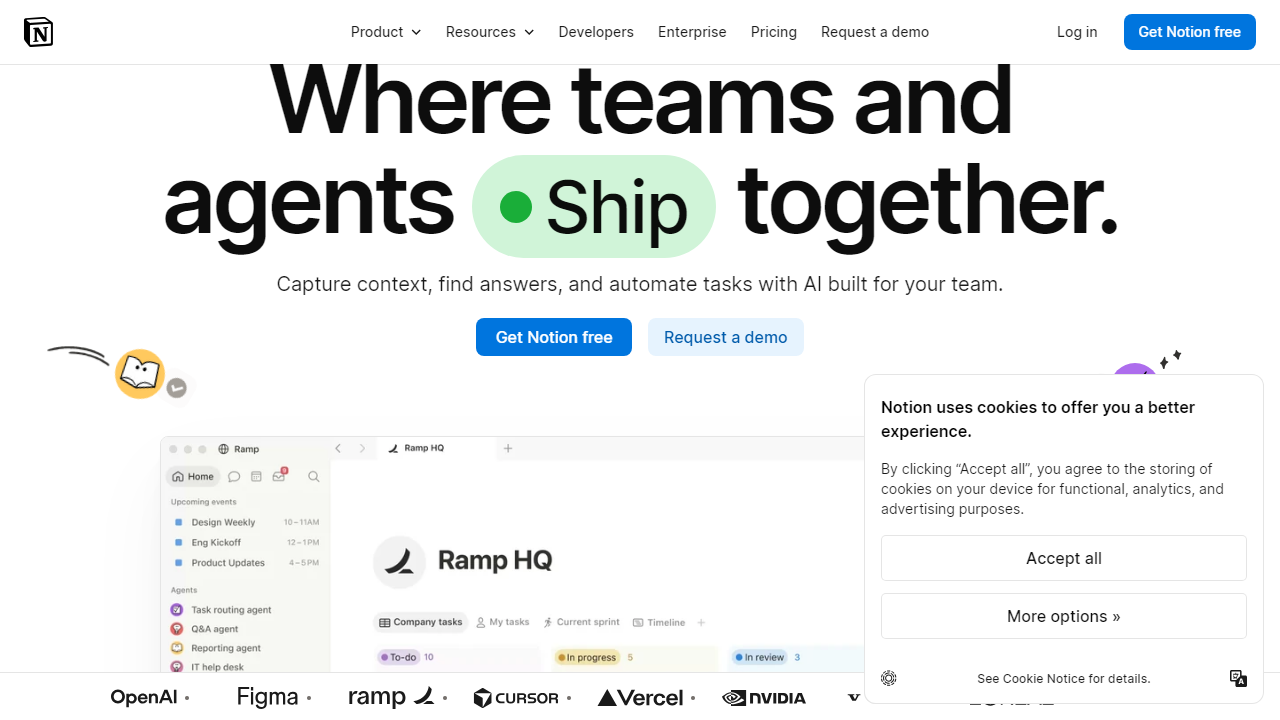
Notion is an all-in-one workspace application developed by Notion Labs, Inc., a San Francisco-based company founded in 2016. At its core, Notion is a block-based editor that lets you build pages containing text, images, tables, databases, kanban boards, calendars, and embedded content — all within a single, unified interface. Rather than forcing you into a fixed structure, Notion gives you primitive building blocks and lets you assemble them however your brain works.
The platform first gained mainstream traction around 2020 when remote work exploded demand for flexible collaboration tools. By 2026, Notion has evolved significantly: it’s added native AI assistance (Notion AI), deeper integrations with Slack, GitHub, and Google Workspace, and an improved mobile experience. The company reached a $10 billion valuation and continues to be the go-to recommendation for productivity enthusiasts, students, freelancers, and startups that need a flexible knowledge management system without an enterprise budget.
Think of Notion as a hybrid between Microsoft Word, Excel, Trello, and Confluence — but with all four tools talking to each other inside a single page. That sounds overwhelming, but in practice it means your meeting notes can link directly to your project tracker, which references your client database, all in one place you actually open every day.
Key Features of Notion (A Beginner’s Breakdown)
Rather than listing every feature Notion has ever shipped, we’ve focused on the six core concepts every beginner needs to understand first. Master these and you’ll be building genuinely useful workspaces within your first week.
Pages and the Block System
Everything in Notion lives on a “page,” and every element on that page is a “block.” Type a paragraph? That’s a block. Add a to-do checkbox? Block. Insert a divider, a quote, a video embed, or a table? All blocks. You create blocks by hitting the “/” key and typing what you want — Notion surfaces a searchable menu of over 50 block types. This slash-command system is the single most important thing to memorize as a beginner, and most users internalize it within a day.
Databases: The Secret Weapon
Notion databases are where beginners go from “fancy note-taker” to “power user.” A database is essentially a table of structured data — think a spreadsheet — but with superpowers. You can switch the same database between six different views: Table, Board (kanban), Calendar, List, Gallery, and Timeline (Gantt-style). Each item in the database is its own full Notion page, so a row in your “Client Projects” table can contain meeting notes, attached files, and embedded task lists. This relational capability is what makes Notion genuinely replace multiple apps at once.
Templates: Skip the Blank Page
Notion’s built-in template library contains over 1,000 options in 2026, covering everything from personal habit trackers and student study planners to engineering sprint boards and investor CRM systems. For beginners, templates are the single fastest path to a functional workspace. Hit “Templates” in the left sidebar, search for your use case, and duplicate the template into your workspace in one click. You can then modify it freely — nothing is locked down.
Notion AI
Notion AI is now included in the Plus plan and above (as of 2026), and it’s no longer the gimmick it felt like at launch. It can summarize long pages, generate first drafts, extract action items from meeting notes, translate content, and answer questions about content inside your workspace. For beginners, the most useful AI feature is “Fill with AI” — you create a database property and let Notion AI automatically populate it based on context. It saves real time on repetitive data entry.
Linked Databases and Relations
Once you have a few databases set up, you can create “relations” between them. For example, link a “Projects” database to a “Clients” database so each project row shows which client it belongs to — and each client page shows all their associated projects automatically. This is where Notion starts feeling genuinely like custom software built for your workflow. It’s an intermediate feature, but beginners who understand it exists will build toward it intentionally from day one.
Sharing and Collaboration
Every Notion page has its own shareable link. You can share a page publicly (anyone with the link can view), share with specific email addresses with view or edit permissions, or publish it as a website. Free plan users can invite up to 10 guests with limited permissions. On paid plans, collaboration is real-time, with live cursor presence and comment threads on any block — making it a functional (if lightweight) team wiki for groups up to around 20–30 people.
Notion Pricing Plans (2026)
Notion’s pricing is one of its strongest selling points, especially for individual users. The free plan is genuinely functional — not a crippled trial — and the paid plans are competitively priced compared to alternatives like Confluence or Coda. Here’s exactly what each tier offers and costs in 2026 (billed annually).
| Plan | Price/mo | Best For | Key Limit |
|---|---|---|---|
| Free | $0 | Solo users, students | Up to 10 guest collaborators |
| Plus | $12/user | Freelancers, small teams | Includes Notion AI; unlimited guests |
| Business | $20/user | Growing teams, departments | Advanced permissions, SAML SSO |
| Enterprise | Custom | Large orgs, compliance needs | Audit logs, dedicated support |
Our honest take on pricing: If you’re a beginner reading this guide, start with the free plan. You will not hit any meaningful limitations as a solo user. If you need to collaborate with a team regularly or want Notion AI, the Plus plan at $12/user/month is fair — but compare it against alternatives before committing to a team subscription.
Who Should Use Notion?
Best Notion Alternatives in 2026
Notion is excellent, but it’s not the right fit for everyone. Here are four strong alternatives depending on what’s missing for you.
| Tool | Starting Price | Best For | Our Rating |
|---|---|---|---|
| Obsidian | Free (personal) | Writers, researchers, offline-first users | 4.5/5 |
| Coda | $10/user/mo | Teams needing automation and formulas | 4.2/5 |
| Confluence | $6/user/mo | Enterprise teams already using Jira/Atlassian | 3.9/5 |
| Todoist | Free / $5/mo | Users who just want a clean task manager | 4.4/5 |