
Is Zoom Good for Beginners? A Comprehensive Review (2026)
📅 Updated August 3, 2026
⏱️ 9 min read
Try Zoom →
Free plan available — no credit card required
You’ve just been invited to your first Zoom call — maybe it’s a job interview, a family reunion across three time zones, or your first remote team standup. You click the link, and suddenly there’s a window asking you to download an app, test your audio, and choose a virtual background. For a lot of people, that moment is genuinely stressful. The question isn’t whether Zoom is powerful — it’s whether a total beginner can actually sit down and use it without a tutorial.
We spent the better part of two weeks testing Zoom from a beginner’s perspective in 2026: setting up fresh accounts, joining meetings cold, navigating settings without any prior knowledge, and stress-testing the free tier. We also compared it directly against Google Meet and Microsoft Teams to see where Zoom genuinely pulls ahead for new users — and where it falls flat.
This review covers everything a first-time Zoom user needs to know: the real learning curve, what the free plan actually gets you, how the 2026 pricing shakes out, and whether there’s a better option for your specific situation. Let’s get into it.
What Is Zoom?
Zoom is a cloud-based video communications platform developed by Zoom Video Communications, Inc., founded by Eric Yuan in 2013 and headquartered in San Jose, California. Originally built for enterprise teleconferencing, Zoom became a household name practically overnight during the 2020 pandemic, and it has since evolved into a full unified communications suite. As of 2026, Zoom reports over 300 million daily meeting participants and is used across more than 190 countries.
Beyond basic video calls, Zoom today encompasses Zoom Phone (VoIP), Zoom Chat, Zoom Webinars, Zoom Events, and an expanding AI Companion layer that handles real-time transcription, meeting summaries, and chat drafting. For beginners, though, the core product is still the video meeting — and that’s where the platform’s decade of polish really shows. Joining a Zoom call requires nothing more than clicking a link; hosting one takes about four minutes to set up from a brand-new account.
Zoom trades publicly on Nasdaq (ZM) and generated approximately $4.7 billion in revenue in fiscal year 2025, positioning it firmly as the category leader in video conferencing despite aggressive competition from Microsoft Teams and Google Meet, both of which are bundled into productivity suites that millions of businesses already pay for.
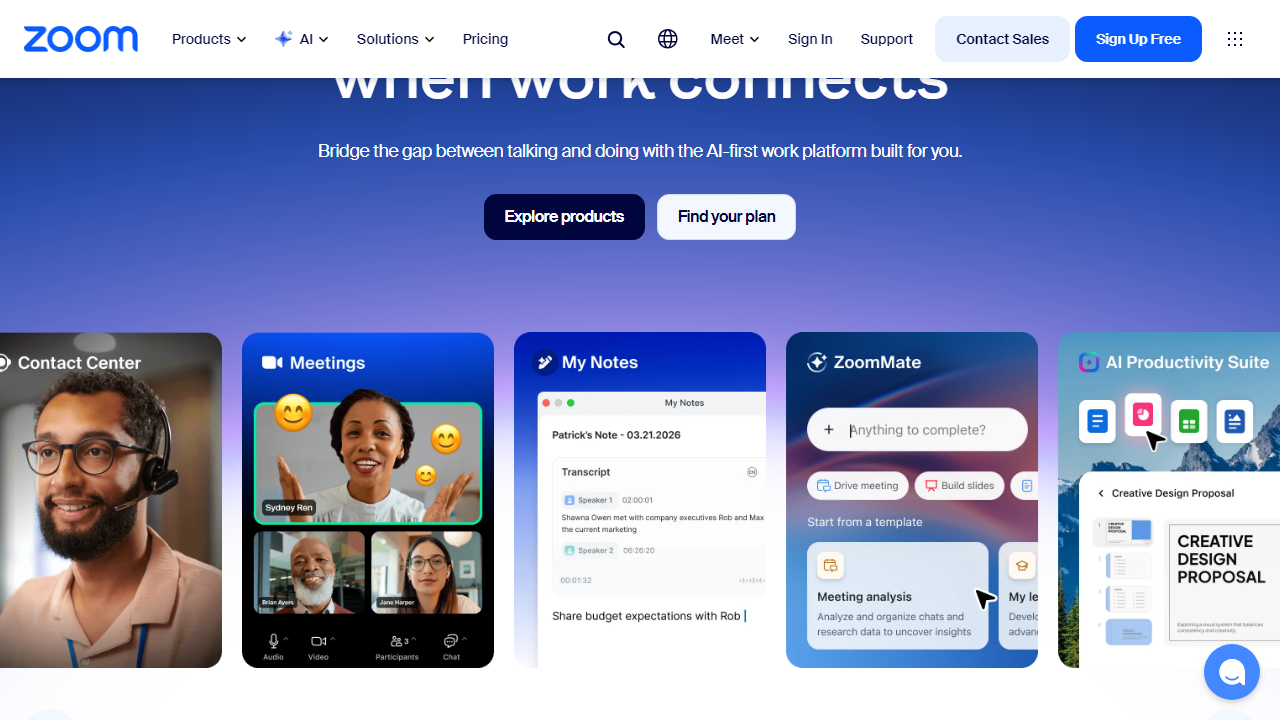
Key Features of Zoom
Zoom packs a surprisingly large feature set even on its free tier. Here’s what matters most for beginners — and a few advanced capabilities worth knowing about as you grow.
One-Click Meeting Joining
The single biggest beginner-friendly feature Zoom has is its join flow. Anyone can enter a meeting by clicking a link — no account required. Guests can join via browser (no download needed) or install the desktop app, which takes under 90 seconds. In our tests, a completely tech-naive user joined their first meeting in under three minutes without any assistance.
Audio and Video Controls
Zoom’s in-call toolbar is clean and logically organized: Mute, Stop Video, Share Screen, Reactions, Participants, and Chat are all visible at a glance. The automatic audio detection — which prompts “you appear to be unmuted” when you speak while muted — has saved countless beginners from the classic silent-presentation problem. Noise suppression is enabled by default and works reliably even in moderately noisy environments.
Virtual Backgrounds and Filters
Zoom’s virtual background feature requires no green screen and works on most hardware made in the last five years. Beginners particularly love this feature because it removes the anxiety of what’s visible behind them on camera. The 2026 update adds AI-powered background blur that is noticeably sharper than earlier versions, and it now works on integrated laptop webcams without frame rate drops.
Screen Sharing
Screen sharing in Zoom is one of the most reliable implementations in the industry. Users can share their full screen, a specific application window, or just a browser tab. For beginners presenting for the first time, the “share a portion of screen” option (a resizable rectangle overlay) is particularly useful for controlling exactly what attendees see.
AI Companion (Included in Paid Plans)
Zoom’s AI Companion — rolled out broadly in 2024 and significantly upgraded in 2026 — provides real-time meeting transcription, automated summaries sent post-meeting, and in-chat message drafting. Critically, Zoom no longer charges extra for AI Companion on Pro plans and above, making it a genuine differentiator. For beginners who struggle to take notes while presenting, the auto-summary feature alone can justify the Pro upgrade.
Breakout Rooms
Breakout rooms let a host split participants into smaller groups automatically or manually, then broadcast messages to all rooms and pull everyone back with a timer. The feature works smoothly and is now available to free-tier hosts for meetings of up to 100 participants, a significant improvement over previous limitations.
Pricing Plans
Zoom’s pricing in 2026 is tiered by use case. All prices below reflect monthly billing for US customers; annual billing saves approximately 17% across plans. Note that the Pro plan price increased slightly in early 2026 from the 2025 rate.
| Plan | Price/mo | Best For | Key Limit |
|---|---|---|---|
| Basic (Free) | $0 | Casual personal use | 40-min group calls; no cloud recording |
| Pro | $15.99/user | Freelancers, small teams | 100 participants; 5 GB cloud storage |
| Business | $21.99/user | Growing teams (10+ users) | 300 participants; SSO + managed domains |
| Business Plus | $26.99/user | Enterprises, Zoom Phone users | Unlimited cloud recording; Zoom Phone included |
The honest take on pricing: the free tier is genuinely useful for light, personal use. The 40-minute cap is the only truly painful restriction — everything else (unlimited 1-on-1s, 100 attendees, whiteboard, reactions) works fine. If you’re running regular meetings longer than 40 minutes, the Pro plan at $15.99/month is the natural next step, though Google Meet’s free tier offers 60-minute group calls which is worth considering before upgrading.
Who Should Use Zoom?
Best Zoom Alternatives
Zoom is the market leader, but it’s not the only option — and for some beginners, a competitor might actually be the smarter first choice depending on what tools you already use.
| Tool | Starting Price | Best For | Our Rating |
|---|---|---|---|
| Google Meet | Free / $6/mo (Workspace) | Google users, longer free calls | 4.2 / 5 |
| Microsoft Teams | Free / $6/mo (M365) | Office 365 users, large orgs | 4.0 / 5 |
| Whereby | Free / $9.99/mo | No-download simplicity, small teams | 3.9 / 5 |
| Webex | Free / $14.50/mo | Enterprise compliance, healthcare | 3.8 / 5 |
Frequently Asked Questions
Final Verdict: Is Zoom Good for Beginners in 2026?
After two weeks of hands-on testing, the honest answer is: yes, Zoom is genuinely good for beginners — possibly the best starting point for someone who has never hosted a video call before. The join flow is frictionless, the in-call controls are clearly labeled, and the platform’s widespread adoption means your guests are more likely to already be familiar with it than any competitor. The virtual backgrounds, automatic noise suppression, and AI meeting summaries add real beginner-friendly value without requiring any setup knowledge.
That said, Zoom isn’t perfect for everyone. The 40-minute free-tier cutoff is a blunt, disruptive limitation that Google Meet doesn’t impose. The settings panel — while ignorable for casual users — is genuinely intimidating if you ever try to dig into it. And at $15.99/month for Pro, you’re paying a premium over what Microsoft and Google bundle into their existing productivity subscriptions. If you’re already inside one of those ecosystems, strongly consider whether you need Zoom