
Is ClickUp Good for Beginners? An Honest, In-Depth Review (2026)
📅 Updated October 30, 2026
⏱️ 11 min read
Try ClickUp →
Free plan available — no credit card required
Here’s the scenario I hear constantly: someone decides to “finally get organized,” Googles “best project management software,” and ClickUp comes up in every top-10 list. They sign up, open the dashboard — and immediately feel like they’ve walked into a cockpit with no flight training. The feature density is real, and it can be paralyzing for a beginner who just wants to track a few tasks.
But here’s what those surface-level takes miss: ClickUp’s complexity is also its biggest strength. After spending three weeks testing ClickUp specifically from a beginner’s perspective — creating fresh workspaces, using only the onboarding tutorials, and comparing it against Notion, Asana, and Trello — I have a nuanced answer. Yes, ClickUp is good for beginners, but with a specific caveat: it depends entirely on which type of beginner you are and how much upfront investment you’re willing to make.
This review covers everything: the actual onboarding experience, which features matter on day one, honest pricing analysis, and a clear recommendation on whether you should start here or go somewhere simpler first.
What Is ClickUp?
ClickUp is an all-in-one productivity platform founded in 2017 by Zeb Evans in San Diego, California. It’s grown from a simple task manager into a comprehensive work OS used by over 10 million teams worldwide as of 2026, including marquee clients like Google, Netflix, and Booking.com. The company’s pitch — “one app to replace them all” — is ambitious, but after testing, it’s more accurate than most marketing slogans.
What separates ClickUp from competitors like Asana or Monday.com is its sheer feature breadth. You’re not just getting task management. You get docs, whiteboards, mind maps, time tracking, goal tracking, dashboards, and a built-in AI assistant (ClickUp Brain) — all under one roof. The platform has over 1,000 integrations and supports 15+ view types, meaning you can view the same project as a Kanban board, a Gantt chart, a spreadsheet, or a simple to-do list.
The critical context for beginners: ClickUp has invested heavily in improving its onboarding since 2024. The 2026 version includes a dedicated “Getting Started” checklist, pre-built templates organized by use case, and an AI-powered setup wizard that asks you a few questions and configures a starting workspace. It’s better than it used to be — but “better” doesn’t mean “easy.”
Key Features of ClickUp
Rather than listing all 100+ features (yes, really), here are the ones that matter most to a beginner and an honest assessment of each.
Task Management & Views
ClickUp’s core is its task system, and it’s legitimately excellent once you understand it. Tasks can have subtasks, nested subtasks, custom statuses, priority levels, assignees, due dates, and custom fields. The 15+ view types — including List, Board, Gantt, Calendar, Table, and Mind Map — let you work the way your brain actually works. Beginners should start with List view and add one new view per week rather than enabling everything at once.
ClickUp Brain (AI Assistant)
ClickUp Brain, the platform’s native AI tool, has matured significantly in 2026. It can summarize long task threads, auto-generate subtasks from a project description, write status updates, and pull answers from across your workspace. It’s included in the Unlimited plan and above ($7/user/mo), and it’s genuinely useful — not a gimmick. For beginners, the “generate subtasks” feature alone can save hours of planning.
Templates Library
ClickUp offers 1,000+ pre-built templates covering everything from software sprints to wedding planning. For beginners, this is the fastest path to a working setup. The “Personal Productivity” and “Simple Project Tracker” templates take about 10 minutes to configure and are good enough to use professionally from day one without any customization knowledge.
Docs & Whiteboards
Built-in Docs function like a lightweight Notion — you can embed tasks, link to projects, and collaborate in real time. Whiteboards are a drag-and-drop visual workspace for brainstorming. Both are included in the free plan (with storage limits). For a beginner running a small business or solo project, this replaces a separate note-taking app.
Automations
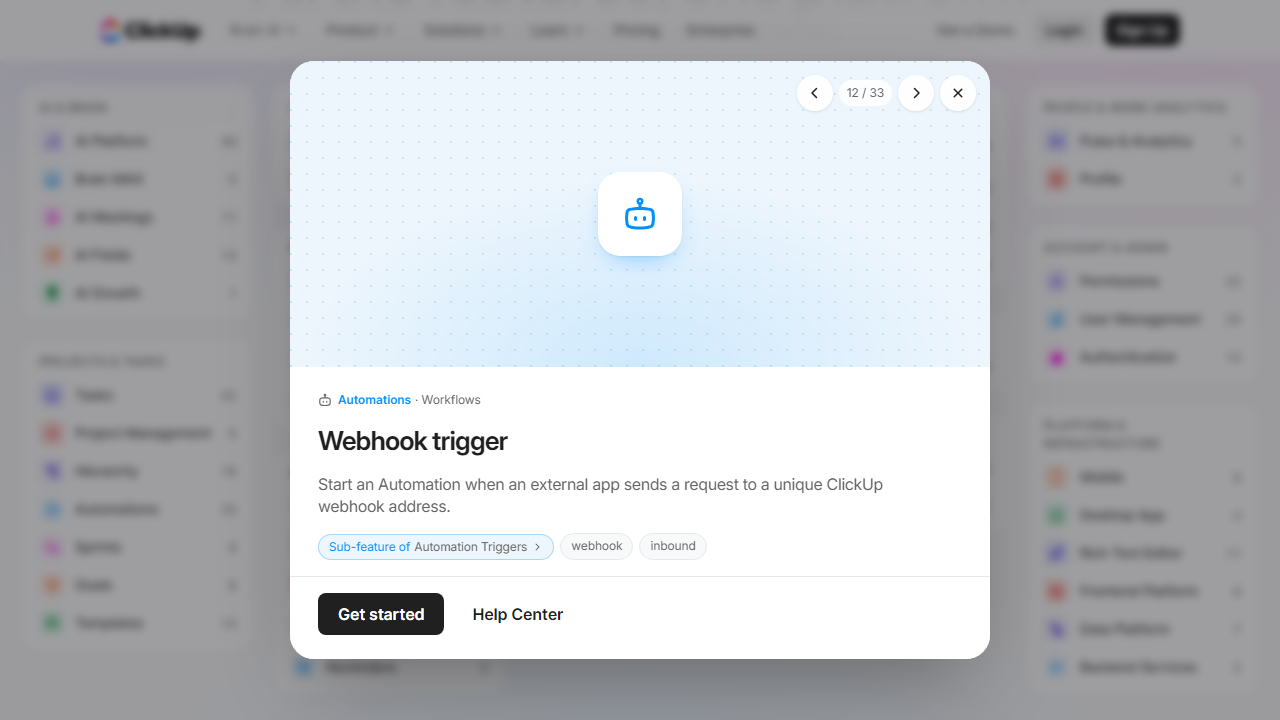
ClickUp includes 100 automation runs per month on the free plan, scaling to unlimited on Business plans. You can auto-assign tasks when statuses change, send email reminders, or move tasks between lists based on triggers. Beginners won’t touch this in week one, but it becomes a major time-saver by month two.
Pricing Plans
ClickUp’s pricing is one of its strongest arguments for beginners — the free plan is among the most generous in the project management category. Here’s the full breakdown for 2026:
| Plan | Price/mo | Best For | Key Limit |
|---|---|---|---|
| Free Forever | $0 | Solo beginners, students | 100MB storage, 100 automation runs/mo |
| Unlimited | $7/user/mo | Freelancers, small teams | Includes ClickUp Brain, unlimited storage |
| Business | $12/user/mo | Growing teams (10–50 people) | Advanced dashboards, timelines, workload |
| Enterprise | Custom | Large organizations | SSO, custom permissions, dedicated support |
For most beginners, the Free plan is the right starting point. It genuinely isn’t crippled — unlimited tasks and members are included. The main reason to upgrade to Unlimited ($7/user/mo, billed annually) is access to ClickUp Brain and removing the storage cap. At $7/user/mo, it remains one of the best-value paid tiers in the category — Asana’s comparable plan starts at $10.99/user/mo and Notion’s at $10/user/mo.
Who Should Use ClickUp?
Best ClickUp Alternatives
ClickUp isn’t the right fit for every beginner. Here’s how it stacks up against the most popular alternatives — all of which I’ve tested hands-on in 2026:
| Tool | Starting Price | Best For | Our Rating |
|---|---|---|---|
| Trello | Free / $5/user/mo | True beginners, visual Kanban lovers | 4.1/5 |
| Notion | Free / $10/user/mo | Docs-first thinkers, knowledge workers | 4.3/5 |
| Asana | Free / $10.99/user/mo | Team task management, cleaner UI | 4.2/5 |
| Monday.com | $9/user/mo (min 3 users) | Teams wanting beautiful dashboards fast | 4.0/5 |
My honest take: If you’ve never used project management software before, Trello is a genuinely better starting point — you’ll be productive in 20 minutes. But if you graduate past Trello’s limits within 60 days (and most people do), ClickUp is where you’ll end up anyway. Starting with ClickUp means you only have to learn once.
Frequently Asked Questions
Final Verdict: Is ClickUp Good for Beginners in 2026?
After three weeks of hands-on testing — including deliberately going through the onboarding as a first-time user, building workspaces from scratch, and stress-testing the free plan limits — my verdict is: yes, ClickUp is good for beginners, but it requires the right expectations. It is not the tool you open and understand in 20 minutes. It is the tool you spend a weekend with and then never outgrow. That distinction matters enormously depending on what kind of beginner you are.
The free plan is genuinely one of the strongest in the market. The template library meaningfully reduces setup time. ClickUp Brain (on paid plans) is a legitimate productivity multiplier, not vaporware. And the $7/user/mo Unlimited plan is priced aggressively compared to every major competitor. For a freelancer, a small team, or a motivated individual willing to invest a few hours upfront,