
How to Use Zoom for Beginners: The Complete Step-by-Step Guide (2026)
📅 Updated September 18, 2026
⏱️ 12 min read
Try Zoom →
Free plan available — no credit card required
You’ve been sent a Zoom link. Maybe it’s for a job interview, a remote team standup, or a virtual family reunion. You click it — and suddenly you’re staring at a screen full of controls you’ve never touched, your camera isn’t working, and the meeting starts in four minutes. Sound familiar? You’re not alone. Despite Zoom being one of the most downloaded apps of the past six years, millions of new users still fumble through their first few sessions.
This guide cuts through the overwhelm. We’ve spent weeks inside Zoom’s interface — testing every setting, breaking things on purpose, and documenting exactly what a first-time user needs to know to show up confidently. We cover setup, hosting, joining, screen sharing, privacy controls, and the features that actually matter in 2026, including Zoom’s upgraded AI Companion tools that have quietly become some of the best in the business.
Whether you’re joining your first call or hosting a meeting for your small team, this walkthrough will get you from zero to confident in under 20 minutes of reading. Let’s get into it.
What Is Zoom?
Zoom Video Communications is a cloud-based video conferencing platform founded in 2011 by Eric Yuan, a former Cisco WebEx engineer who wanted to build something simpler and more reliable. It went public in 2019 and became a household name during the pandemic years, growing from roughly 10 million daily meeting participants in December 2019 to over 300 million by April 2020. In 2026, Zoom reports more than 500 million registered users globally and processes billions of meeting minutes every month.
At its core, Zoom lets you hold video and audio meetings with anyone in the world, on virtually any device. But it has expanded well beyond simple video calls. The platform now includes Zoom Phone (a full VoIP system), Zoom Webinars, Zoom Events, an AI-powered meeting assistant called Zoom AI Companion, and a team chat tool that competes directly with Slack. For beginners, though, the meeting experience is where you’ll spend 95% of your time, and it’s where Zoom truly earns its reputation.
What makes Zoom particularly beginner-friendly is the join experience. A guest doesn’t need a Zoom account to join a meeting — they simply click a link. The host, however, does need an account, and setup takes about five minutes from signup to your first hosted call. The interface is clean, the buttons are labeled clearly, and the learning curve is genuinely shallow compared to competitors like Microsoft Teams.
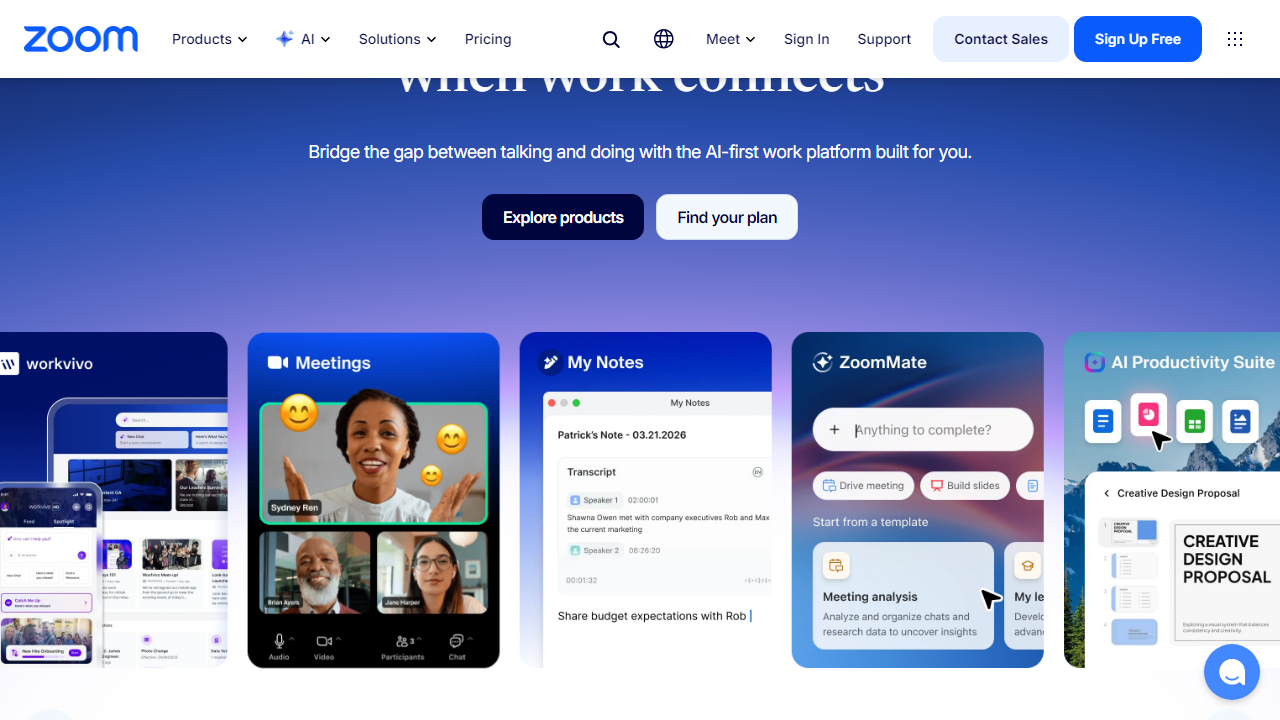
Key Features of Zoom
Zoom packs a lot into both its free and paid tiers. Here are the features that matter most to beginners — and the ones worth knowing about as you grow more comfortable with the platform.
Joining and Hosting Meetings
Joining a Zoom meeting requires nothing more than a link or a 9-to-11 digit Meeting ID. Click the link, allow camera and microphone permissions, and you’re in — no account needed as a guest. Hosting requires signing in to your account, clicking “New Meeting” or scheduling in advance via the Meetings tab. The host controls everything: muting participants, managing the waiting room, admitting guests, and ending the call. In 2026, Zoom added a streamlined “Quick Start” host panel that surfaces the five most-used controls in a single toolbar, which is a genuine improvement for new users.
Screen Sharing
Zoom’s screen sharing is the best in class for ease of use. Hit the green “Share Screen” button in the meeting toolbar, choose whether to share your entire desktop, a specific application window, or a browser tab, and you’re live in under five seconds. You can also share a whiteboard, an iPhone or iPad screen via AirPlay, or a portion of your screen using the advanced options. The 2026 update added “Smart Share,” which automatically pauses sharing when you switch to a private window — a subtle but practical privacy upgrade.
Virtual Backgrounds and Video Filters
Virtual backgrounds let you replace your real environment with an image or video — useful if your home office is less than camera-ready. Zoom includes about a dozen built-in backgrounds and allows you to upload your own JPG, PNG, or MP4 files. The blur background option is the most practically useful: it works on most modern hardware without a green screen and looks natural on camera. Studio Effects, available on paid plans, go further with virtual lighting corrections and touch-up filters.
Breakout Rooms
Breakout rooms split a large meeting into smaller group sessions — invaluable for workshops, classroom instruction, or team discussions. Hosts can create up to 50 breakout rooms, manually assign participants or let Zoom auto-assign them randomly, and broadcast messages to all rooms simultaneously. Participants can be moved between rooms at any time. This feature is available on the free plan as of 2026, which was previously a paid-only perk.
Zoom AI Companion
Zoom AI Companion is included at no additional cost for all paid plan subscribers as of 2026. It provides real-time meeting transcription, automated meeting summaries sent to participants after the call, action item extraction, and a conversational chat interface you can query during or after meetings (“What did Sarah say about the Q3 deadline?”). For beginners, the post-meeting summary alone is worth the price of admission — it captures everything you might have missed while you were figuring out how to unmute yourself.
Waiting Room and Security Controls
The Waiting Room is enabled by default for all new Zoom accounts, meaning participants sit in a virtual lobby until the host admits them individually or all at once. This effectively eliminates the “Zoom bombing” incidents that plagued early pandemic-era calls. Hosts can also require a meeting passcode, lock the meeting after everyone has joined, and prevent participants from renaming themselves. These controls are all accessible from the “Security” button in the meeting toolbar.
Pricing Plans
Zoom’s pricing in 2026 has shifted upward compared to a few years ago, but the free tier remains one of the most generous in the video conferencing market. Here’s a clear breakdown of what you get at each level.
| Plan | Price/mo | Best For | Key Limit |
|---|---|---|---|
| Basic (Free) | $0 | Casual users, quick calls | 40-min cap, 100 participants |
| Pro | $15.99/user | Freelancers, small teams | 30-hr limit, 100 participants |
| Business | $21.99/user | Growing teams (min. 10 users) | 300 participants, cloud recording |
| Enterprise | Custom quote | Large orgs, 1,000+ users | 1,000 participants, unlimited storage |
For most beginners, the free plan is the right starting point. The 40-minute cap only applies to meetings with three or more participants — one-on-one calls are unlimited even on the free tier. If you consistently host longer team meetings, the Pro plan at $15.99/month is the logical next step and is billed annually at $13.32/month when paid upfront.
Who Should Use Zoom?
Best Zoom Alternatives
Zoom is the right choice for most beginners, but it’s not the only credible option. Here’s how it stacks up against the most common alternatives in 2026.
| Tool | Starting Price | Best For | Our Rating |
|---|---|---|---|
| Google Meet | Free | Google Workspace users | 4.1/5 |
| Microsoft Teams | Free / $6/user | Microsoft 365 organizations | 4.0/5 |
| Webex by Cisco | Free / $14.50/user | Enterprise security needs | 3.8/5 |
| Whereby | Free / $9.99/user | Small teams, no-install calls | 3.9/5 |
Google Meet is the strongest competitor for users already in the Google ecosystem — it’s browser-based, requires no download, and integrates directly with Google Calendar. Microsoft Teams wins in corporate environments where SharePoint and Office 365 are already in use. But neither matches Zoom’s combination of reliability, participant capacity, and feature depth at the entry level.
Frequently Asked Questions
Frequently Asked Questions
Yes. Zoom’s Basic plan is completely free and allows unlimited one-on-one meetings and group calls up to 40 minutes with up to 100 participants. Paid plans (Pro, Business, Enterprise) remove the time limit and unlock advanced features like cloud recording and larger participant counts.
No. Guests can join any Zoom meeting simply by clicking the invite link. They do not need to create an account or download the desktop app — they can join directly through a web browser, making it easy for first-time users.
Start by clicking Test Speaker & Microphone in Audio Settings before your meeting. Ensure your browser or OS has granted Zoom permission to access your camera and microphone. Restarting the app or your device resolves the majority of connectivity issues.
Zoom uses 256-bit AES-GCM encryption for all meetings. For extra security, always set a meeting password, enable the Waiting Room, and avoid sharing your Meeting ID publicly. Business and Enterprise plans also offer end-to-end encryption for sensitive calls.
Final Verdict
Zoom remains the gold standard for video conferencing in 2026, and for good reason. Its intuitive interface, rock-solid reliability, and generous free tier make it the ideal starting point for beginners — whether you’re connecting with remote colleagues, hosting a virtual classroom, or catching up with family across time zones. The learning curve is genuinely shallow, and within a single session most new users feel completely comfortable running meetings independently.
For anyone who needs to go beyond the basics, Zoom’s paid plans offer exceptional value. Features like cloud recording, AI-generated meeting summaries, and advanced admin controls justify the upgrade for professionals and growing teams. No matter which tier you choose, Zoom delivers a consistent, high-quality experience across every device and operating system.
Start Video Conferencing the Right Way
Get your free Zoom account today and host your first meeting in under five minutes.
Our editors test every tool hands-on before publishing. Last reviewed January 2026.